Dispatch Board Design: What the Best Dispatchers See on Their Screens
A dispatcher looks at the same screen a few hundred times a day, and every glance is a question: who is where, what is late, who can take the two o'clock. A good dispatch board answers each one before the eye has finished moving. A bad one turns every glance into a search, so the dispatcher keeps the real board in their head, which works until the morning they are off sick.
What follows is what that screen must answer at a glance, how status colour should work, which view earns the screen, and what to delete, with OnTyme's board as the worked example, including where it falls short. For the category itself, start with the dispatch software guide.
The Board Is Mission Control
Stephen Few defined a dashboard in 2004 as "a visual display of the most important information needed to achieve one or more objectives; consolidated and arranged on a single screen so the information can be monitored at a glance" (Stephen Few, Dashboard Confusion, 20 March 2004). Two phrases do the work for a dispatch board: most important and at a glance.
Most important means the board is not the database; it shows the four fields that change a decision in the next hour. At a glance means no clicking, hovering, scrolling or remembering. Design it like the instrument panel of a van: little, legible, and loud only when something is wrong.
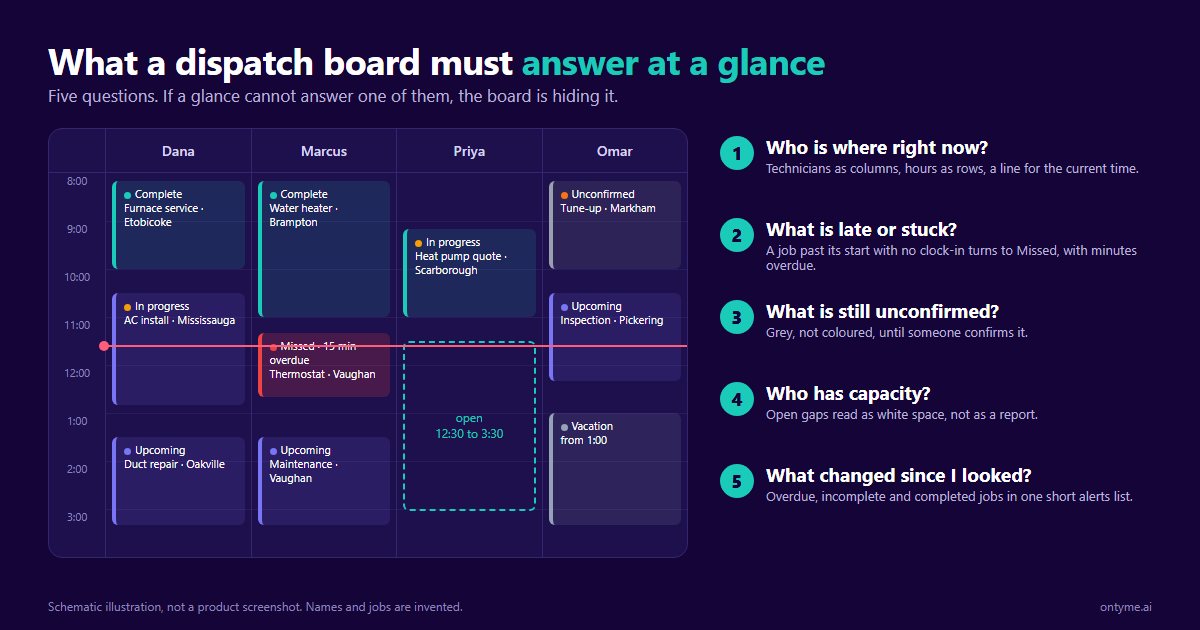
The Five Things a Dispatch Board Must Answer at a Glance
Judge any board by how many of these it answers without a click.
1. Who is where right now? Technicians as columns, hours as rows, a line at the current time. OnTyme's day view is built this way and sorts columns with jobs ahead of empty ones. A job switches to In progress when the technician clocks in from the app, so the column shows whether they have started, not just where they are booked.
2. What is late or stuck? The answer should be a state, not a deduction. OnTyme derives status from what the technician actually did: a job whose start time has passed with no clock-in becomes Missed, and the dashboard's alert list prints it as overdue with the minutes elapsed. There is no predictive at-risk flag before the start time passes.
3. What is unconfirmed? Every board needs a holding state for work that is booked but not settled. In OnTyme the job card stays grey, instead of taking its appointment-type colour, until someone flips the Confirmed toggle. Grey is the one colour that reads as "not real yet" without a legend.
4. Who has capacity? On a column-per-technician grid, capacity is white space. The harder question is which gap is the cheapest to fill, and that is the one job OnTyme's scheduler does: it searches the open gaps of the technicians you point it at and returns the single slot with the least added driving, with a sentence explaining why. How the recommendation works has the detail.
5. What changed since I looked? Most boards fail this one, because a board shows state, not change. OnTyme's answer is a short alerts list on the dashboard: overdue jobs, jobs completed or marked incomplete in the last two hours, and new jobs created today. It keeps no per-edit change log, so if another admin moves a job you see the new time but not that it moved.
Status Colour Systems That Work
Colour is the fastest channel the eye has, which is exactly why boards abuse it. Three rules keep it useful.
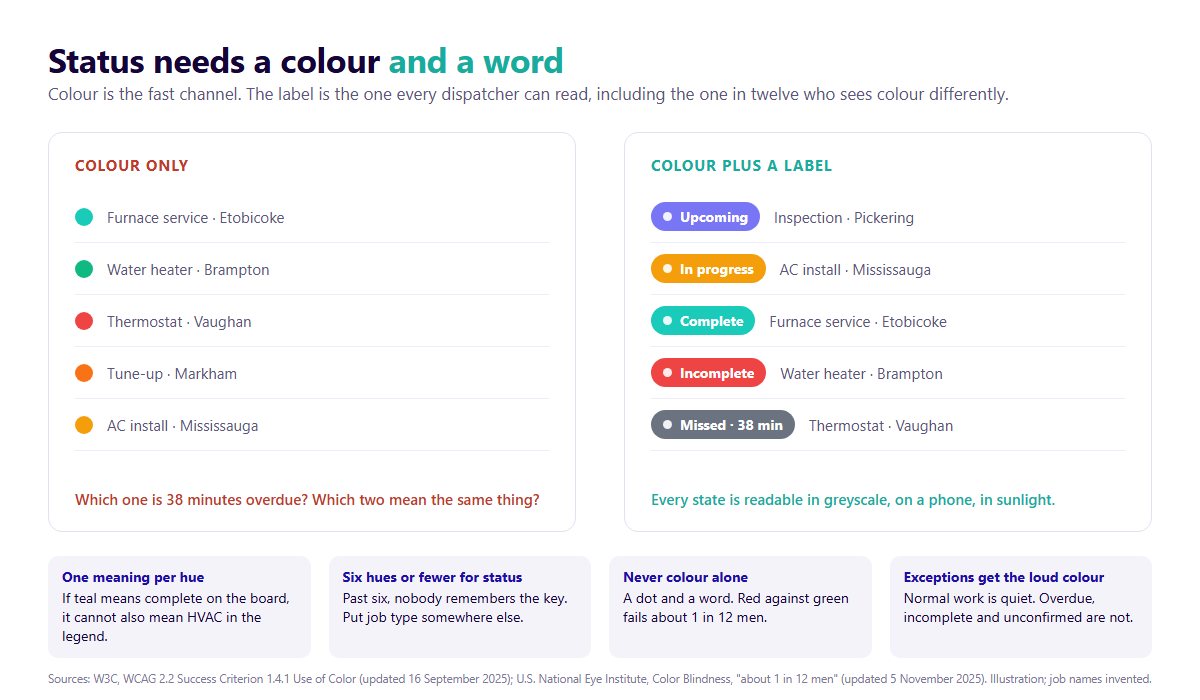
One meaning per hue. If teal means complete, it cannot also mean HVAC. OnTyme keeps the two apart: the card's colour is the appointment type and the status is a coloured dot plus a text pill on the card.
Six status hues or fewer. Past six, nobody remembers the key. OnTyme's job states are upcoming, in progress, complete, incomplete and missed, with unconfirmed in grey and time off in muted tones. That is already at the limit.
Never colour alone. The Web Content Accessibility Guidelines put it plainly: colour "is not used as the only visual means of conveying information" (W3C, WCAG 2.2, Success Criterion 1.4.1, updated 16 September 2025). About 1 in 12 men have a colour vision deficiency (U.S. National Eye Institute, Color Blindness, updated 5 November 2025), and red against green, the pair most boards use for late and done, is the pair most of them cannot separate. Every status in OnTyme carries its name as a text pill, so the board still reads in greyscale.
Exception-First Design
A board that shows everything shows nothing. The best boards are quiet when the day is going to plan and loud at exactly the points where a person has to act.
Three interruptions earn the screen space: a job that should have started and has not, a job that ended wrong, and a change about to collide with something. OnTyme surfaces the first two through status and the alerts list. The third it catches at the moment of the change: drag a job to a new time on the web board and it snaps to the half-hour, checks the technician's other jobs for an overlap, and refuses with a Time Conflict message naming the job it would hit. A job that has started, ended or had work recorded on it cannot be dragged at all. Started work is a record, not a plan.
When the exception is bigger than one job, a sick call at 7 a.m. say, the board gets you to the decision and a person makes it; OnTyme does not re-shuffle the day on its own. The emergency re-dispatch playbook walks through that morning.
Timeline, Map and List: The Three Views
No single view answers all five questions, so a board earns its keep by switching cheaply between three.
Timeline, for capacity and sequence. Technicians by hour. OnTyme offers day, 3-day, week and month grids; the technician-column day grid is the dispatching view.
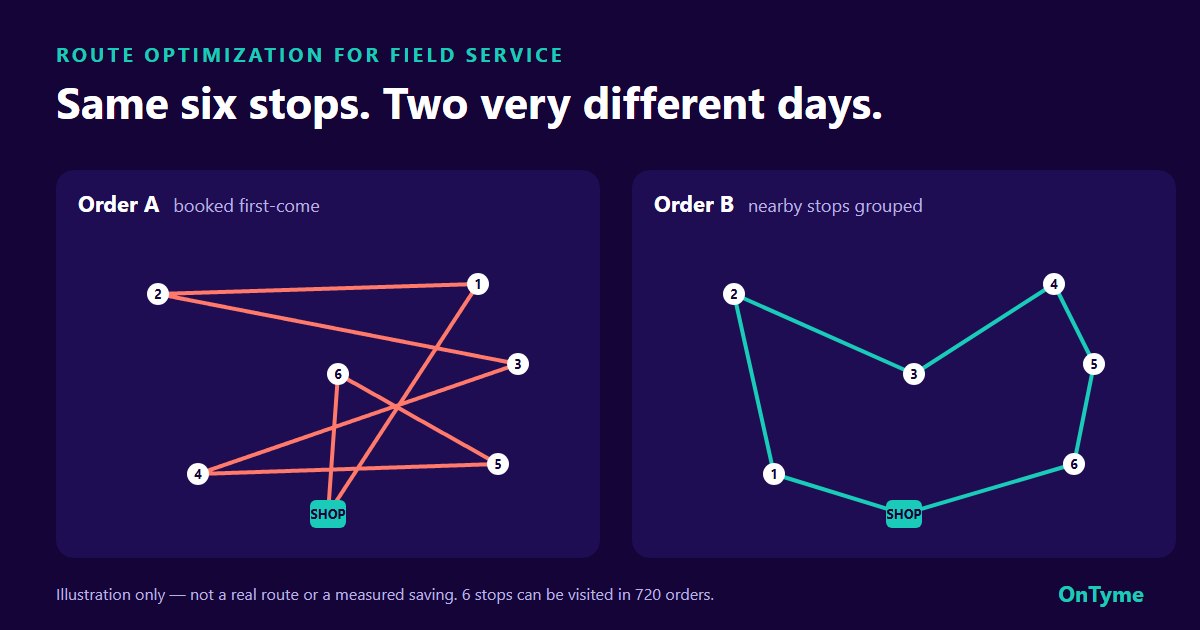
Map, for geography. When the question is "who is closest", pins beat columns. OnTyme's dispatcher board has no map layer and no live truck tracking. Geography enters at booking time, when the scheduler prices every candidate slot by live drive time, and on the technician's phone, where the Your Day screen maps the day's stops, draws the route to the next one and lets the technician send the customer an ETA text by hand. Route optimization for field service covers what a map can and cannot save.
List, for batch work. Confirming tomorrow's jobs, chasing the unconfirmed ones, exporting the week. OnTyme's schedule view is the list: filter by technician, appointment type, status or tag, search any event, and export the filtered set as a calendar file.
Clutter to Kill
Remove these, in order of how much they cost.
- Rainbow overload. Twelve job types, twelve colours, status colours on top. Keep status to a handful of hues and move job type into the label or a filter.
- Notes as status. "Called customer, no answer" typed into the job title because the board has no state for it. Give the common cases a real status.
- Everything visible, always. Vacations, last week's jobs, the other branch's trucks. Filters exist so the board can be about today. OnTyme's filter bar hides technicians, types, statuses and tags and prints how many are hidden.
- The board as a to-do list. Parts to order and calls to return belong in a task list. On the board they bury the one job that is actually late.
What OnTyme's Board Does Not Do
Checked against the code: no map view on the dispatcher's board, no live truck tracking or "en route" state, no predictive late flags, no automatic customer notification when a job moves, and no automatic re-shuffle of the day. If one of those is the thing you need most, say so in the demo and watch for it being shown live.
FAQ
What should a dispatch board show? Five things at a glance: who is where right now, what is late or stuck, what is unconfirmed, who has capacity, and what changed since you last looked.
What is the best way to colour-code job status? One meaning per hue, six hues or fewer, never colour alone. Keep job type in a different channel from job state, and print the status word on every card.
Should dispatchers use a map or a timeline view? Timeline for capacity and the shape of the day, map for same-day geography, list for batch work.
What makes a dispatch board easy to use? It answers the five questions without a click, stays quiet when the day is on plan, and refuses a change that would collide with another job.
How many jobs can one dispatcher manage? There is no neutral, published figure. On your busiest normal day last month, count the jobs the dispatcher actually moved, reassigned or confirmed. Touches per day is the capacity number; jobs per day is just volume.
Your dispatcher spends more waking hours with the board than with most people in their life. Watch the demo on the product page, then book a demo and ask to see the five questions answered on a live board rather than a slide.